
Quick Time Events
Overview
Quick Time Events (QTEs) are timed challenges that appear during certain activities like Robberies. When a QTE starts, you get a short countdown to prepare, then you must complete the challenge within 30 seconds. Each QTE type tests a different skill, reaction speed, memory, precision, or button mashing. Success moves the robbery forward, while failure ends it.
QTEs have a difficulty level from 1 to 10 that affects things like speed, number of required inputs, or size of target zones. Higher difficulty means a harder challenge.
General Tips
- Pay attention during the preparation countdown so you know what type of QTE is coming.
- Keep your hands on both the keyboard and mouse, different QTEs require different controls.
- Stay calm under pressure. You have 30 seconds, which is more time than it feels like.
QTE Types
1. Moving Bar
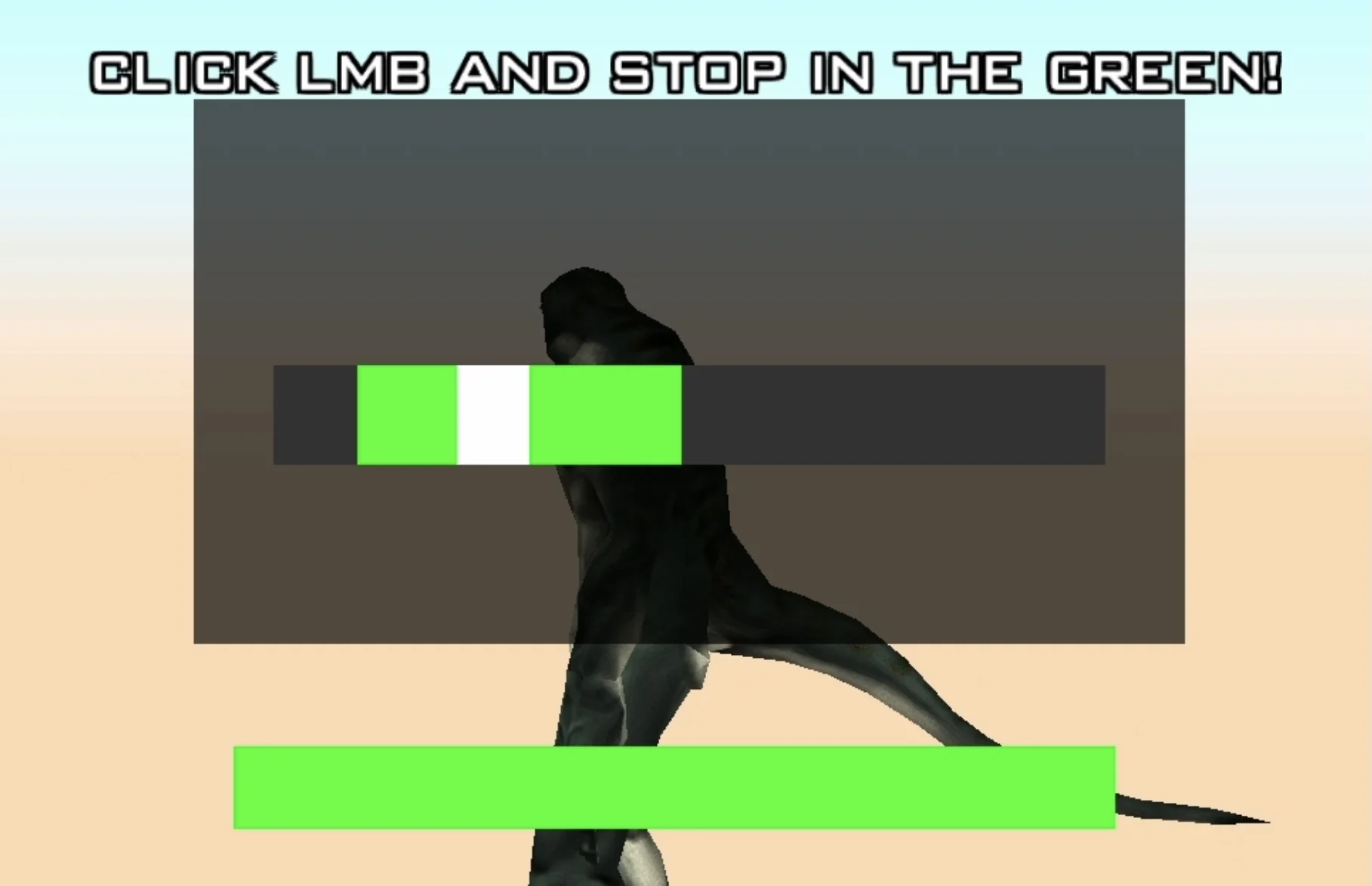
A bar appears on screen with a small marker that slides back and forth. A green zone is highlighted somewhere on the bar.
- Control: Press LMB (left mouse button) to stop the marker.
- Goal: Stop the marker inside the green zone.
- Difficulty effect: Higher difficulty makes the green zone smaller and the marker faster.
2. Button Mash
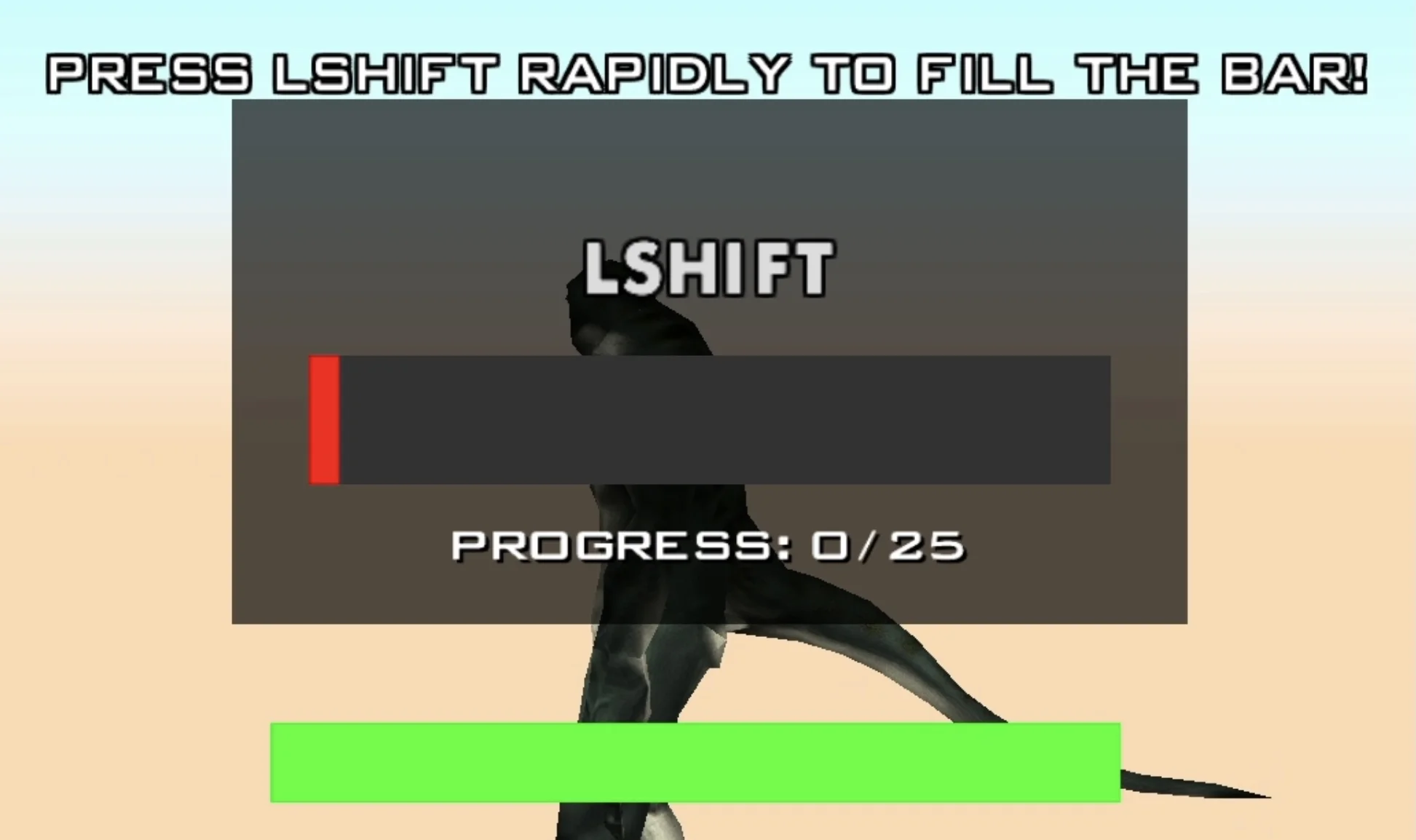
A progress bar appears on screen that you need to fill up by mashing a key.
- Control: Mash Spacebar repeatedly.
- Goal: Fill the progress bar to 100% within the time limit.
- Difficulty effect: Higher difficulty requires more presses to fill the bar (difficulty x 25 presses).
3. Code Breaker
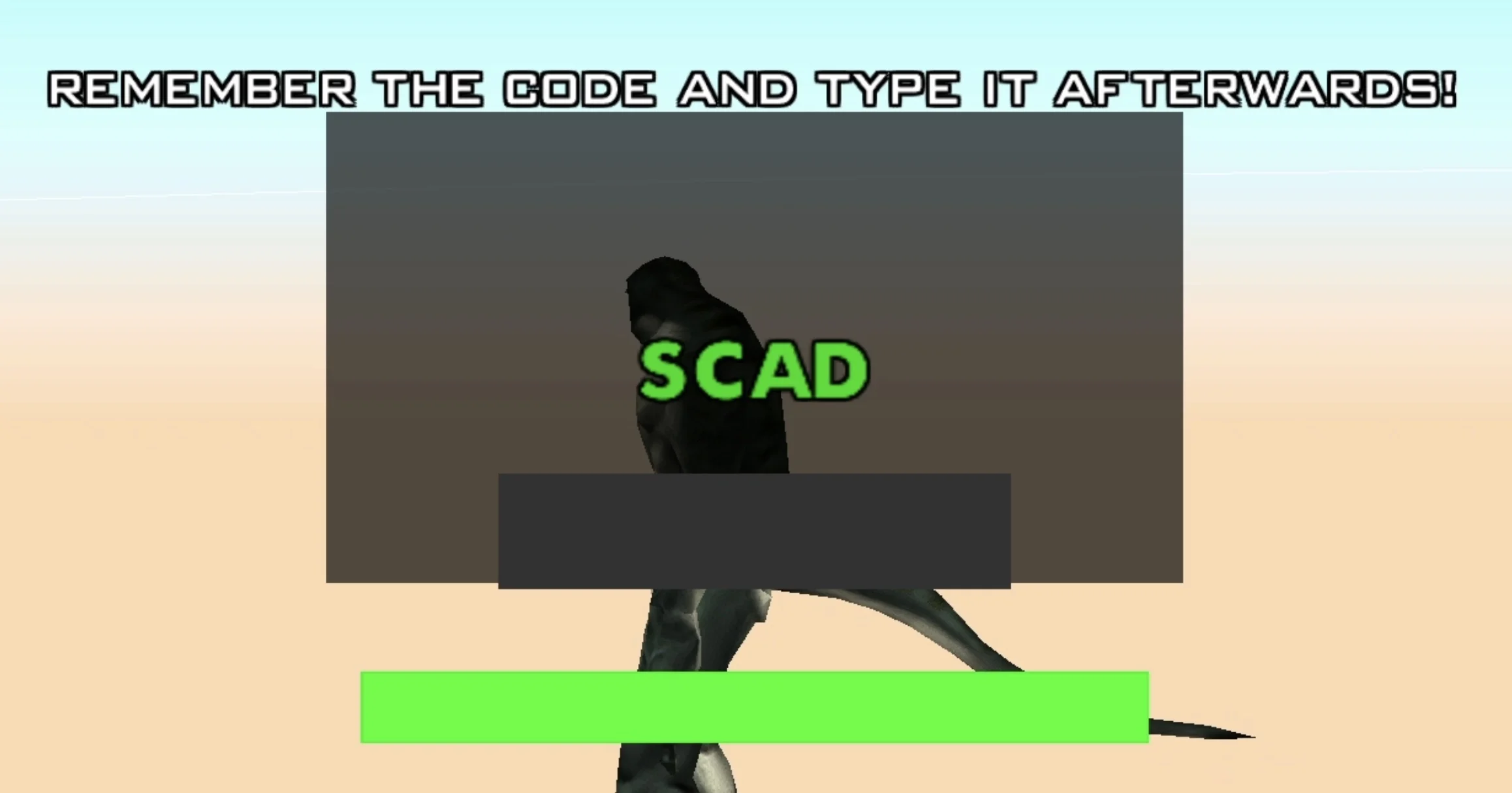
A code flashes on screen briefly, then disappears. You need to type it back from memory.
- Control: Type the code into the dialog input box.
- Goal: Enter the exact code that was shown.
- Difficulty effect: Higher difficulty increases the code length (4-6 characters) and reduces how long it is displayed.
4. Wire Cutting
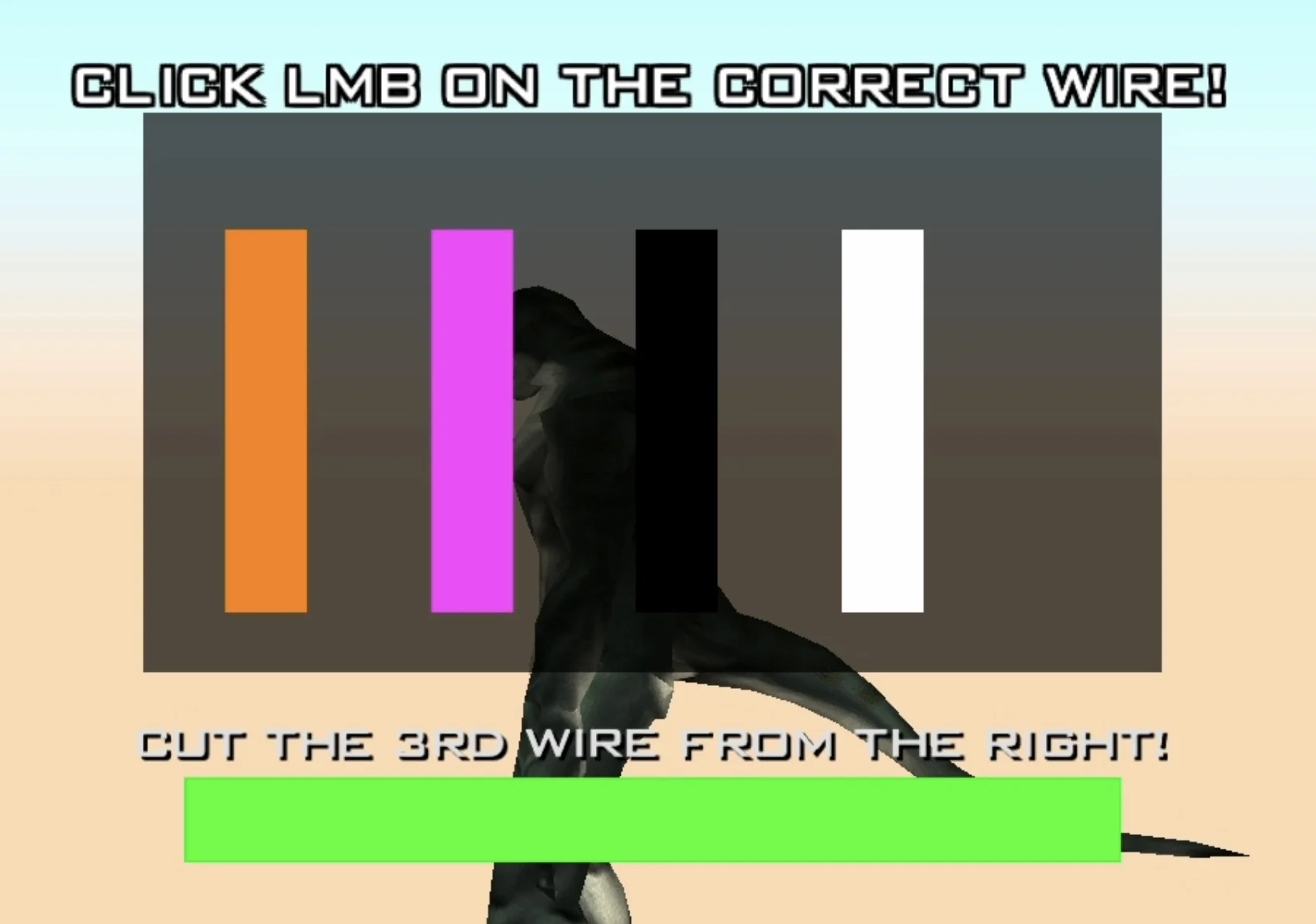
Several colored wires are displayed on screen. A hint tells you which wire to cut based on its color, position, or which wire to avoid.
- Control: Click the correct wire with your mouse.
- Goal: Cut the right wire based on the hint provided.
- Difficulty effect: Higher difficulty adds more wires and makes hints less direct.
5. Safe Lock
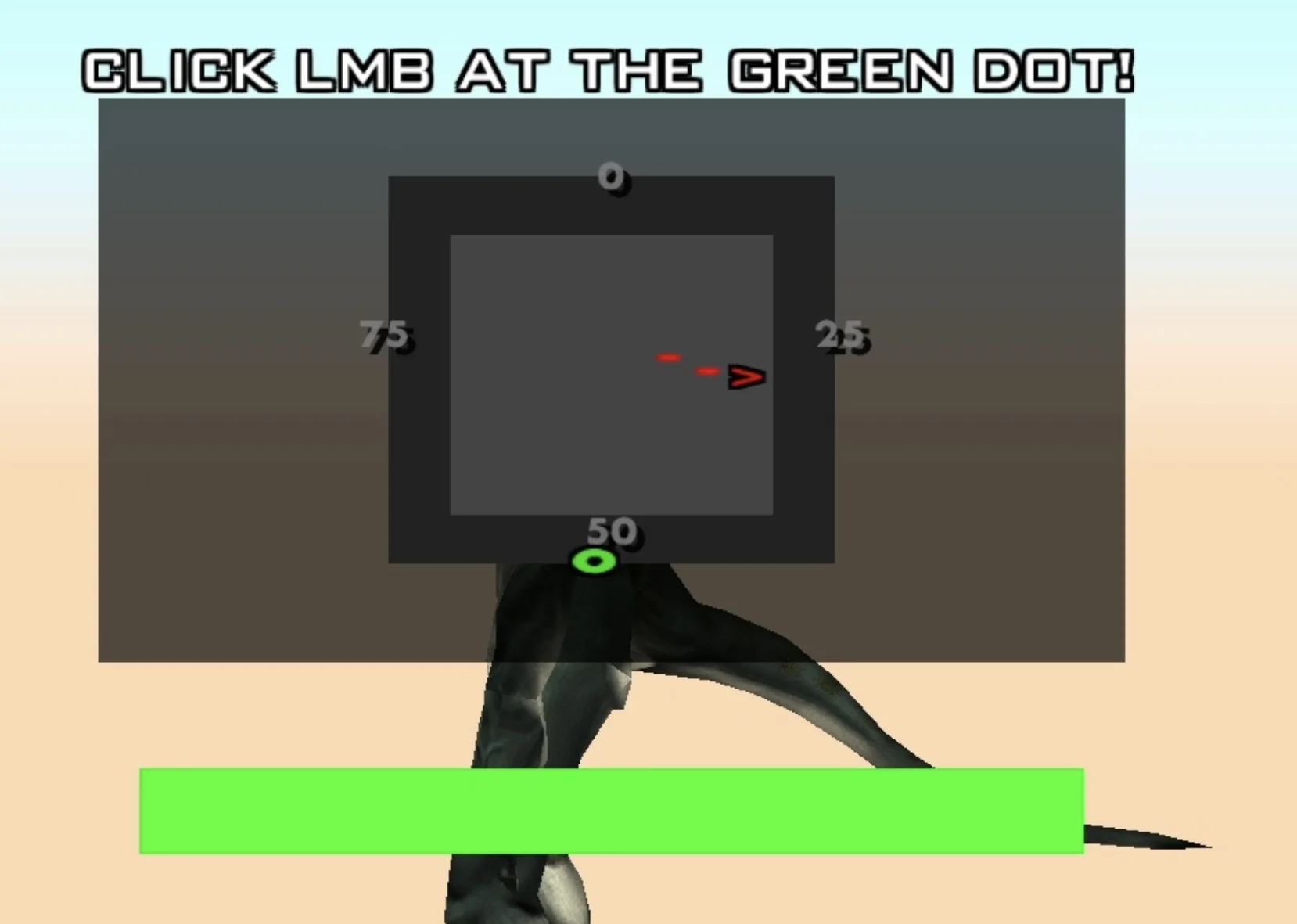
A circular dial appears with a rotating needle and a green dot marking the target position.
- Control: Press LMB (left mouse button) when the needle reaches the green dot.
- Goal: Stop the needle on or near the green dot.
- Difficulty effect: Higher difficulty makes the needle rotate faster and the target zone smaller.
6. Balance Meter
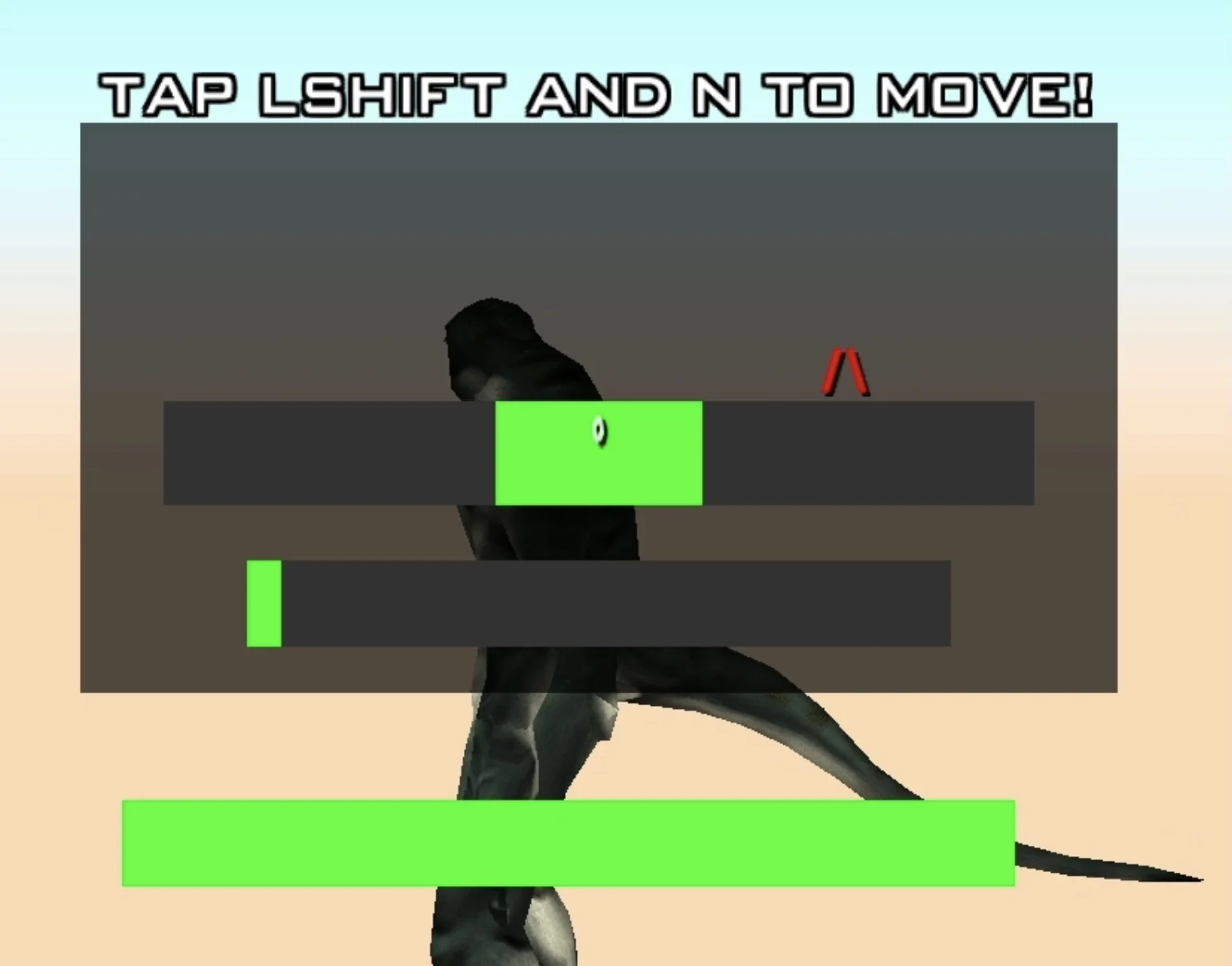
A pointer sits on a meter and drifts in random directions. You need to keep it centered within the green zone for a set amount of time.
- Control: Press Spacebar to nudge the pointer left, press N to nudge it right.
- Goal: Keep the pointer inside the green zone until the timer fills up.
- Difficulty effect: Higher difficulty makes the pointer drift faster, shrinks the green zone, and requires you to hold balance for longer.
7. Quick Reaction
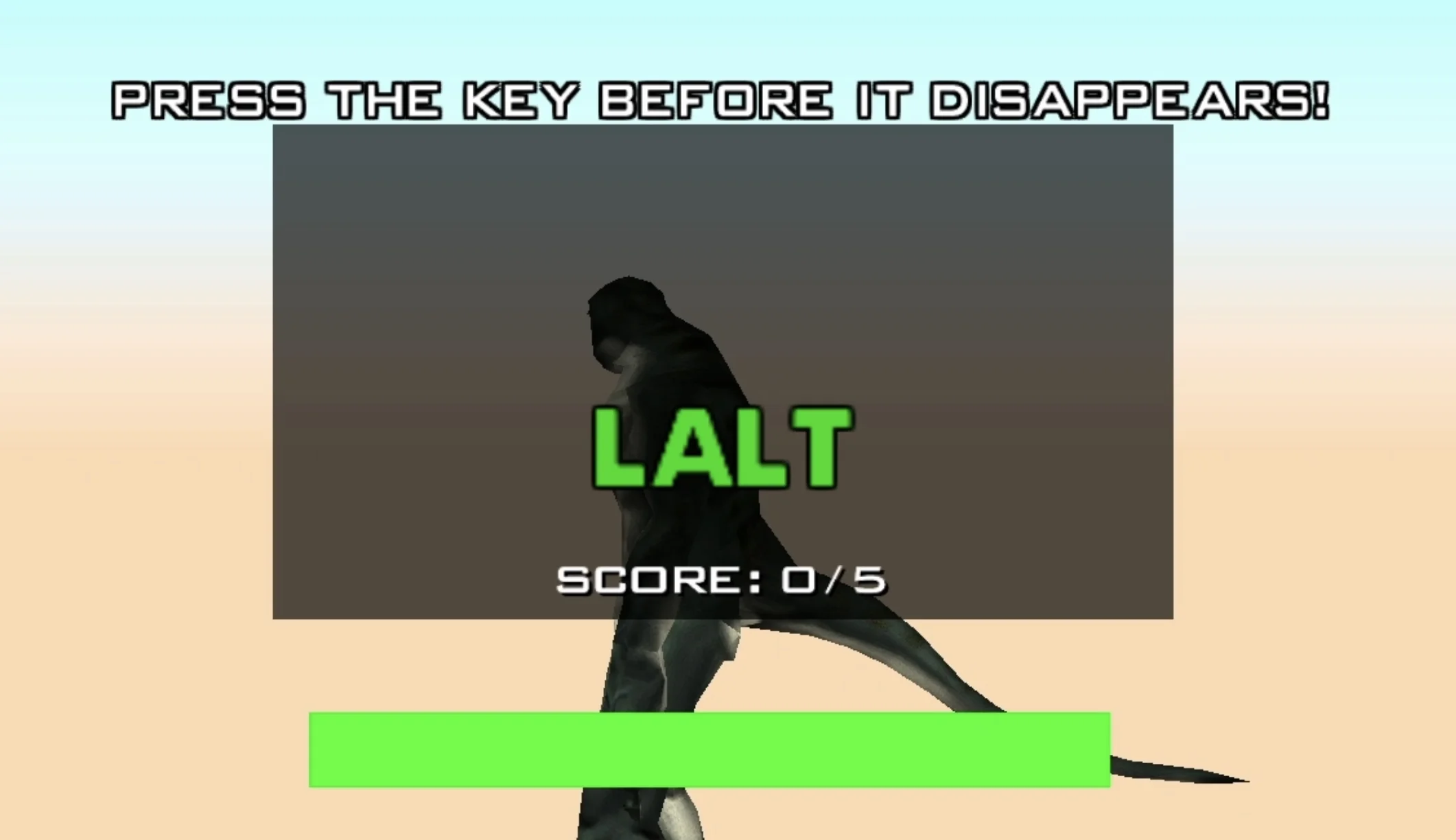
A key prompt flashes on screen for a brief moment. You must press it before it disappears.
- Control: Press the displayed key before it vanishes.
- Goal: React in time and press the correct key.
- Difficulty effect: Higher difficulty reduces how long the key is shown on screen.
8. Lockpick
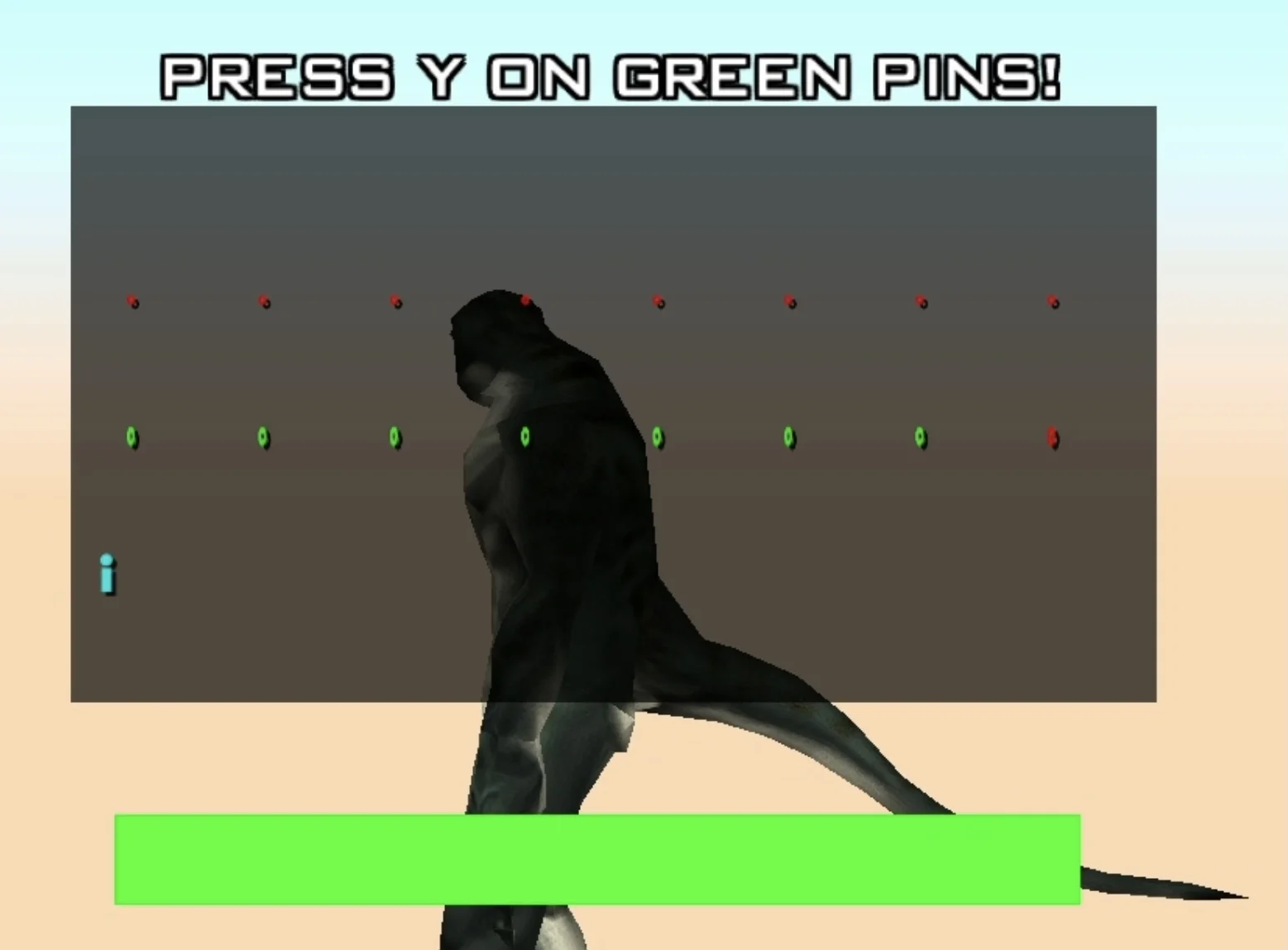
A lockpick tool moves across a row of pins. Each pin is either green or red.
- Control: Press Y to push down a pin as the tool passes over it.
- Goal: Press Y on all green pins and skip all red pins.
- Difficulty effect: Higher difficulty adds more pins and speeds up the tool movement.
9. Math
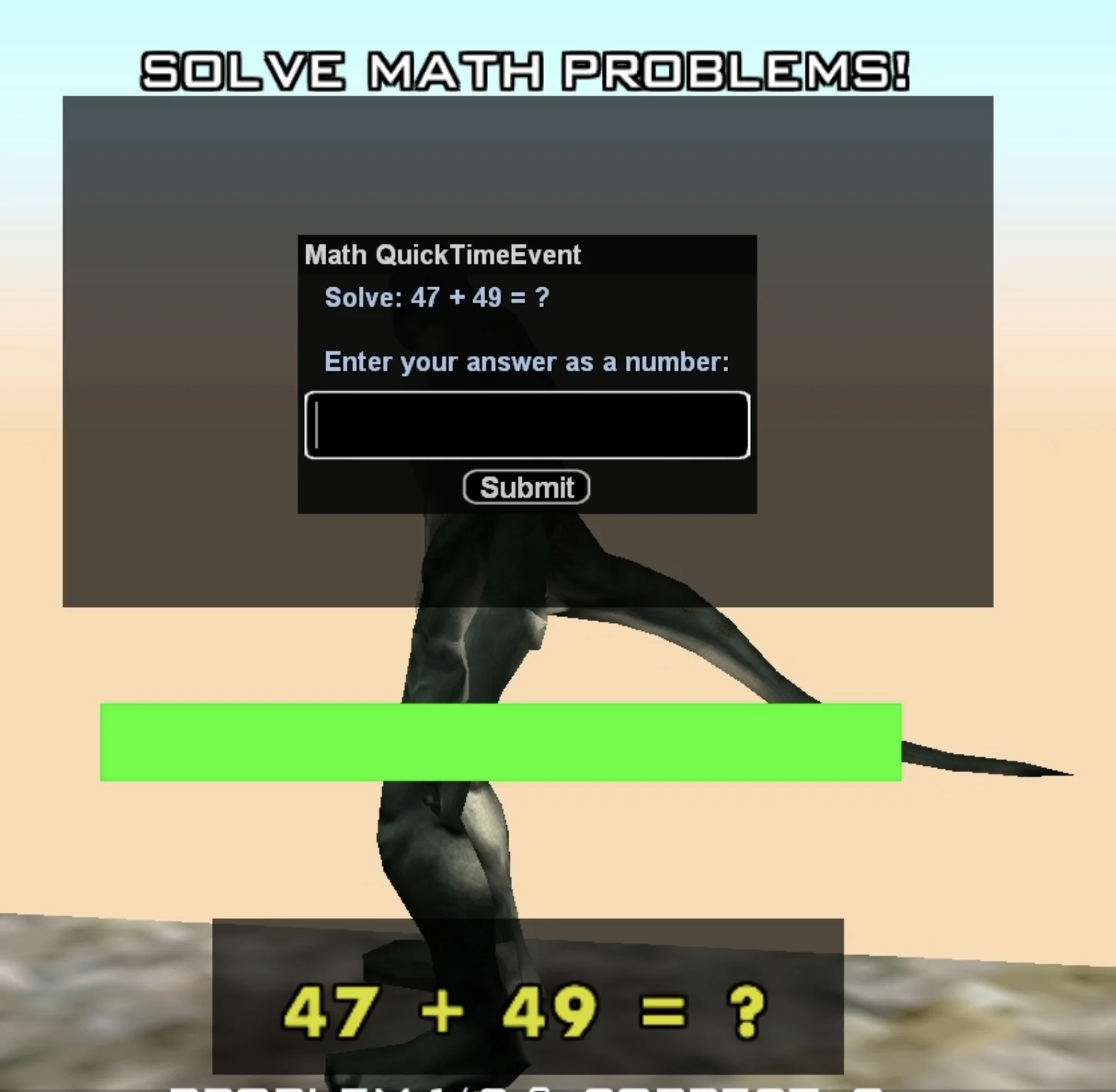
A series of arithmetic problems are displayed one at a time.
- Control: Type your answer into the dialog input box.
- Goal: Answer at least 60% of the problems correctly.
- Difficulty effect: Higher difficulty increases the complexity of the math problems and the number of questions.
10. Random Button
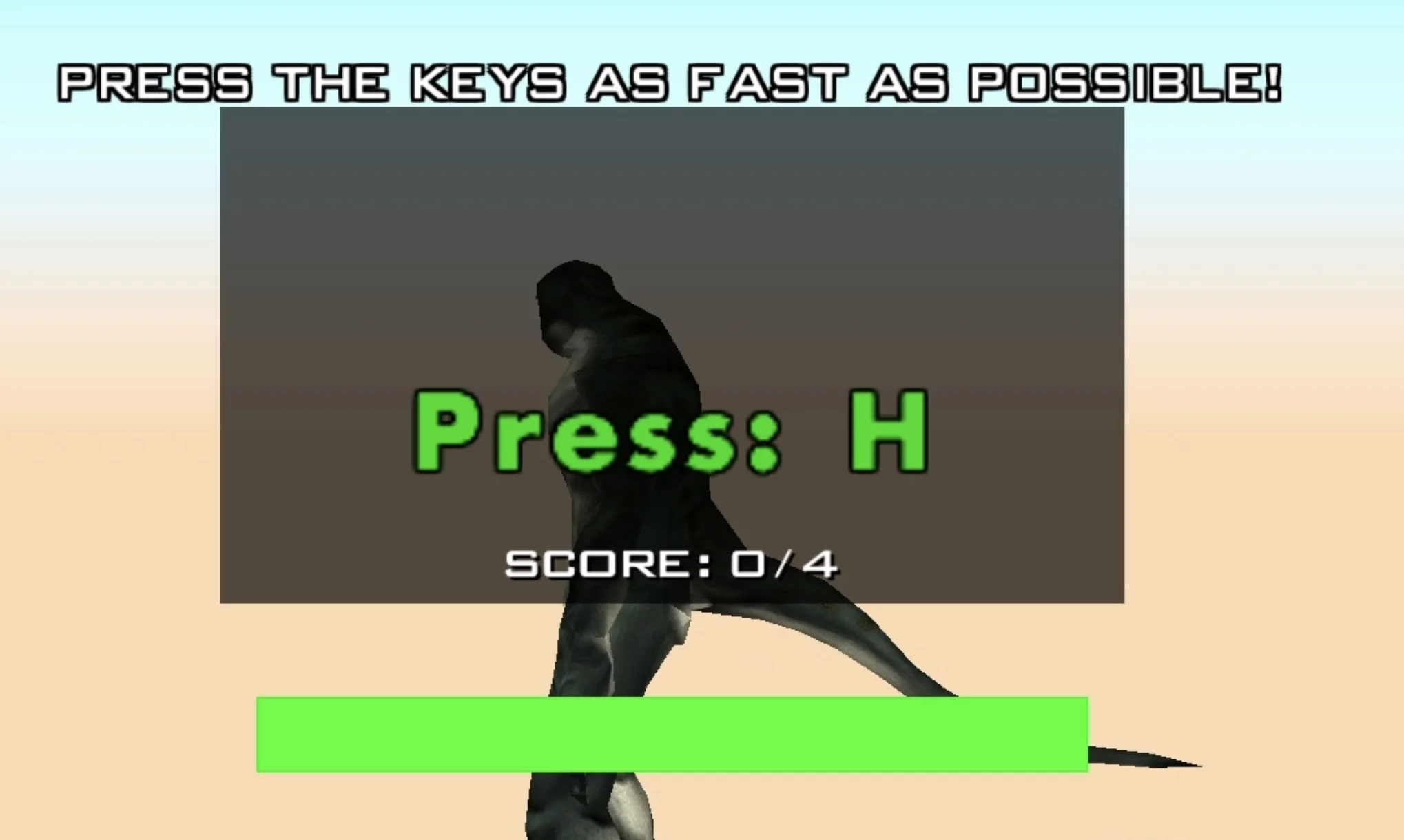
A key is displayed on screen. After you press it, a new key immediately appears, and so on.
- Control: Press each displayed key as it appears.
- Goal: Press enough correct keys within the time limit.
- Difficulty effect: Higher difficulty requires more correct key presses to complete.
11. Key Sequence
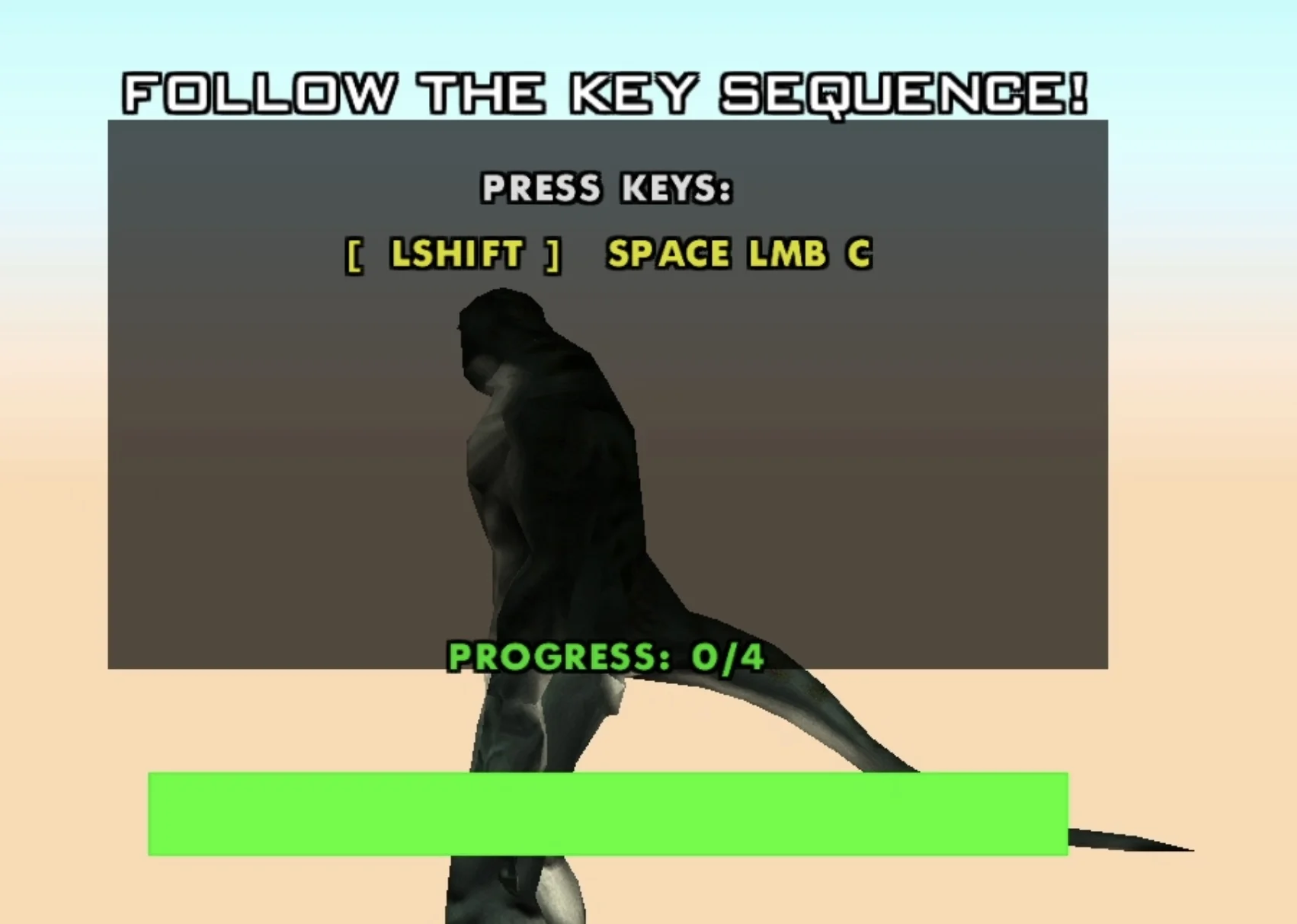
A sequence of keys is shown on screen all at once. You must press them in the exact order displayed.
- Control: Press the shown keys in order.
- Goal: Complete the full sequence without pressing a wrong key.
- Difficulty effect: Higher difficulty increases the length of the sequence.
12. Response Time
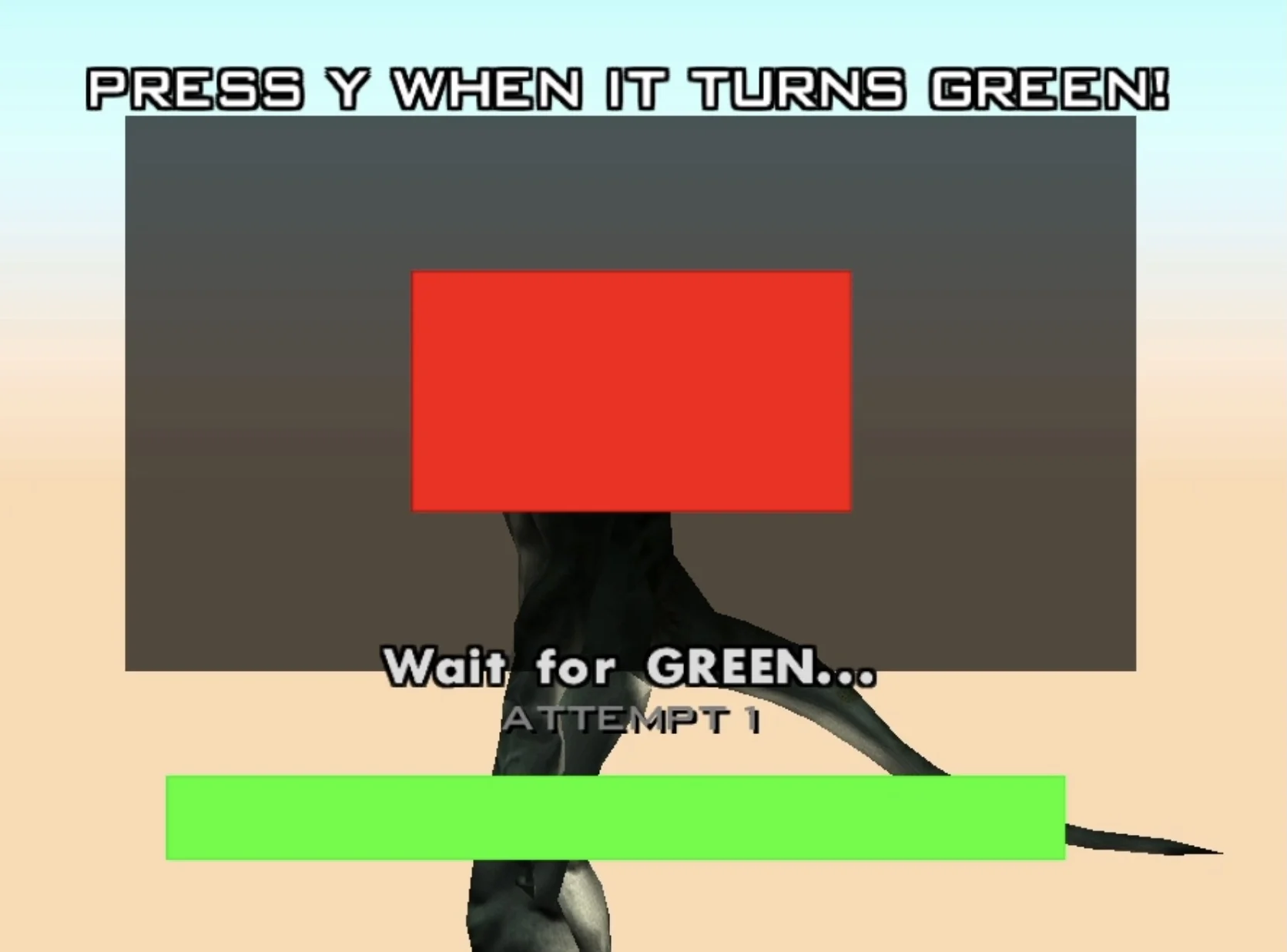
A box appears on screen. After a random delay, it turns green.
- Control: Press Y as quickly as possible once the box turns green.
- Goal: Press Y within the reaction window after the box changes color.
- Difficulty effect: Higher difficulty gives you a shorter reaction window to press the key.
Summary
| QTE | Control | Core Mechanic |
|---|---|---|
| Moving Bar | LMB | Stop marker in green zone |
| Button Mash | Spacebar | Mash to fill progress bar |
| Code Breaker | Dialog input | Memorize and retype a code |
| Wire Cutting | Mouse click | Cut the correct wire from a hint |
| Safe Lock | LMB | Stop needle on green dot |
| Balance Meter | Spacebar / N | Keep pointer centered in green zone |
| Quick Reaction | Shown key | Press key before it disappears |
| Lockpick | Y | Press Y on green pins, skip red pins |
| Math | Dialog input | Solve arithmetic problems (60% to pass) |
| Random Button | Shown key | Press each key as it appears |
| Key Sequence | Shown keys | Press keys in exact order |
| Response Time | Y | Press Y when box turns green |